Most small businesses make their own marketing. A flyer for the open day, a social post about a new service, a one-page price sheet for the counter. The usual problem is not making one; it is making them look like they come from the same business. Different fonts, a logo stretched to fit, a colour that is nearly but not quite the brand.
AI design tools can help with that, particularly if you set your brand up once and reuse it. This article walks through a practical workflow using Claude Design for drafting and Canva for finishing, and the things worth checking along the way. Product details change often, so the specifics here were checked in November 2026.
The two tools, briefly
Claude Design is Anthropic’s tool for creating designs, slides and one-pagers by describing what you want and refining it on a canvas. It now sits inside the main Claude app and is available on every plan including Free, with usage counting towards your normal Claude limits (Claude support). The older standalone site at claude.ai/design closes on 14 December 2026, so if you have work there, move or download it before then (Claude support).
Canva is the familiar design tool with templates, a large image library, brand kits, scheduling and printing. Many owners already use it, and there is no need to stop.
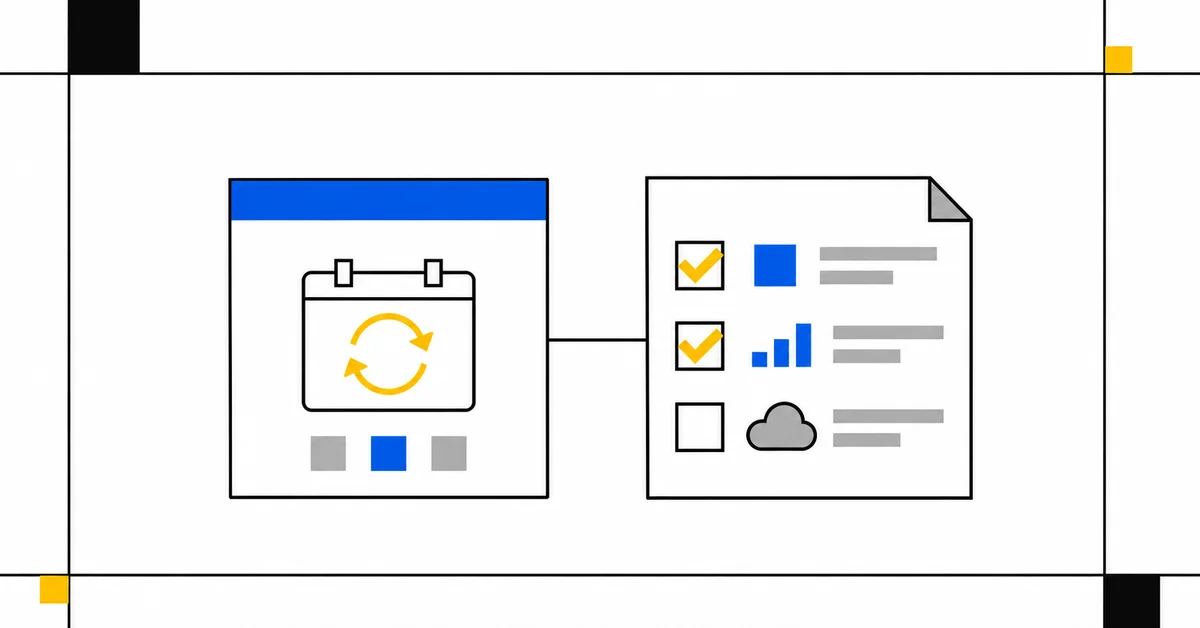
The two work together. Claude Design can export to Canva, PDF, PowerPoint, Google Slides and standalone HTML (Claude support). Separately, Canva offers a connector that lets Claude search, create, fill in and export Canva designs from a chat (Claude connectors); it is available on paid Canva plans and team admins can switch it off (Canva help).
Step 1: set your brand up once
The biggest improvement comes from telling the tool what your brand looks like, rather than letting it guess. Without that, AI design tools tend to fall back on their own default style.
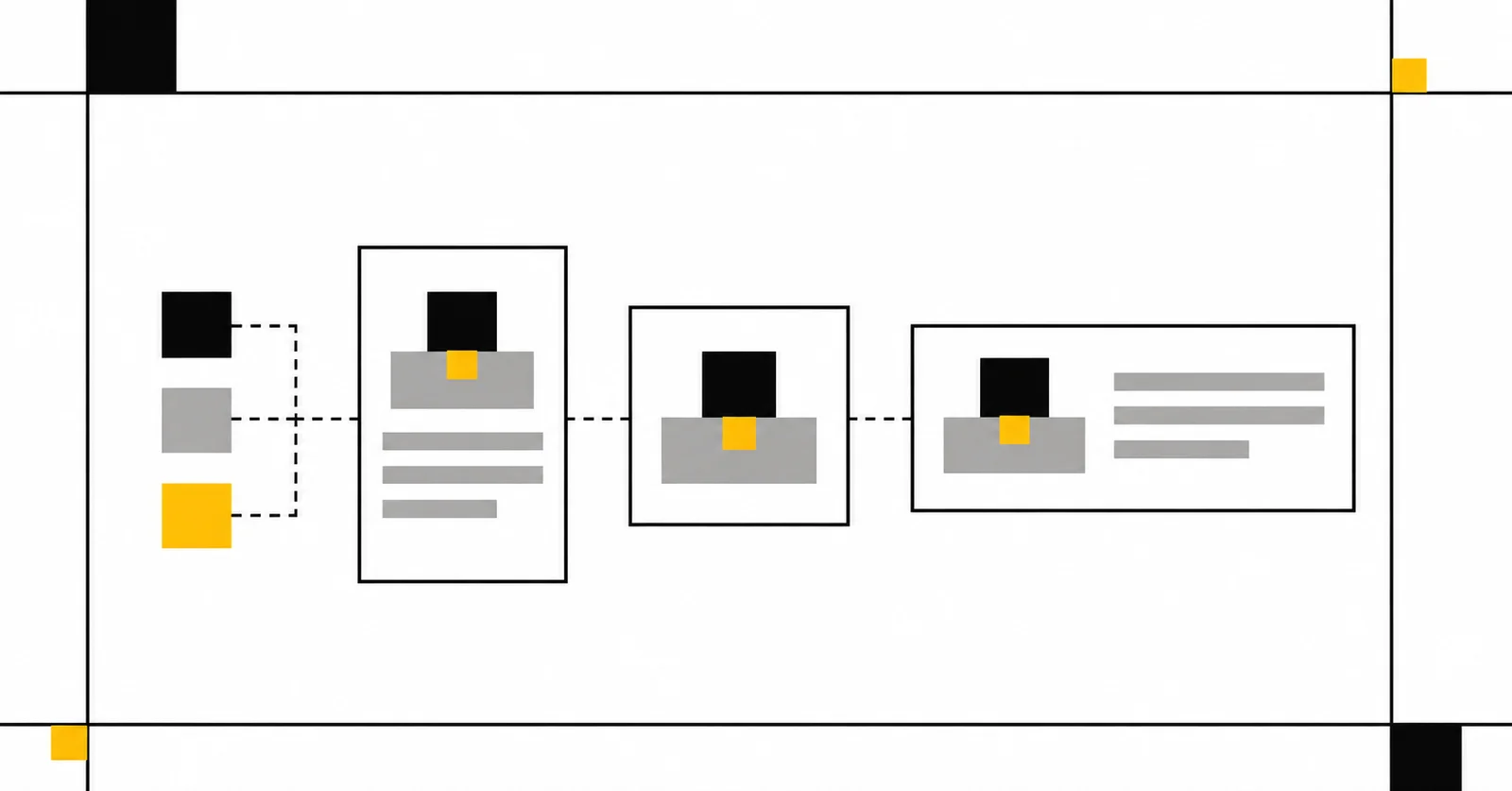
In Claude Design this is a design system: your colours, fonts, logo and layout rules, extracted from material you already have such as your logo, an old brochure, a slide deck or screenshots of your website (Claude support). Once set up, new designs use it automatically. Design systems are currently listed for Pro, Max, Ultra, Team and Enterprise plans rather than Free, so check what your plan includes.
If you work mainly in Canva, its brand kit does a similar job for Canva designs.
We used Claude Design to help create the design system for this site: black, white and Cornish Duchy Gold, square corners and a short set of rules about tone. New pieces start from it, including a flyer template.
Step 2: brief it like a designer would
The same principles as any good brief apply (Better briefs for AI). Tips from the designer who built Claude Design are a useful guide (Claude):
- Work out what you want first. What is it for, who reads it, where does it go, and what should they do next?
- Name the look. If you have no design system, say which fonts and colours, or upload examples you like.
- Ask for several options, then combine the best parts.
- Sketch it. A photo of a rough pen sketch of the layout often works better than a paragraph.
- Point at what to change. Click an element and describe the change, rather than describing where it is.
- Do the final tweaks by hand. Small alignment and spacing changes are quicker with the editing tools than with more prompts.
A brief for a flyer might look like this (an invented example):
A5 flyer for a garden centre’s free spring planting morning on Saturday 7 March, 10am to 12pm. Use our design system. Headline, three short points on what visitors can try, the address and space for a QR code to the booking page. Plain and uncluttered, with room for a photo of the greenhouse.
Step 3: finish where it makes sense
Choose where to finish based on what happens next:
| Job | Start in | Finish in |
|---|---|---|
| A quick social post from an existing template | Canva | Canva |
| A new flyer or one-pager in your brand | Claude Design | Canva, or PDF for print |
| A pitch deck or proposal | Claude Design | PowerPoint, Google Slides or Canva |
| A simple landing page | Claude Design | Hand off to a coding tool to build (building an app with AI) |
| A month of scheduled posts | Canva, or Claude with the Canva connector | Canva scheduler |
There is no rule that one tool must win. Use whichever gets the job done in your brand with the least fiddling.
Step 4: check before it goes out
Words and facts. Dates, times, prices, phone numbers and addresses. AI tools can change details while rearranging a layout.
Images. Make sure you have the right to use any photo, and that AI-generated images do not show anything misleading about your premises, products or people.
Print. Always check print artwork with your printer before ordering. Ask what they need for size, bleed, colour and file format, and request a proof for anything you are printing in quantity. A PDF that looks right on screen is not always ready for press.
A note on business information
Marketing material usually involves less sensitive information than, say, customer records. Even so, think before uploading client logos, customer photos or unpublished plans to any AI tool, and check the provider’s terms and your account settings. If you connect tools together, such as Claude and Canva, each service’s own terms apply to what passes through it. What to check before putting business information into AI tools covers the questions to ask.